
 MOCKO


How to Open PSD Files on iPhone
Why PSD files are hard to open on a phone, and how to open PSD and PSB mockups on iPhone with MOCKO, replace the design, export in 4K or turn it into a post.

On this page
Someone sends you a PSD, or you just bought a mockup, and you're nowhere near a computer. You tap the file on your iPhone and get, at best, a flat preview. You can't see the layers, you can't swap the design, and you can't export anything useful.
Short answer: the Files app can only show a flat preview of a PSD. To work with the layers and smart objects, open the file in MOCKO: PSD Mockup Editor, a free iPhone app. Tap Open PSD, pick the file, tap the smart object to drop in your design, then export a PNG or JPEG in up to 4K. No Photoshop and no computer needed.
This guide explains why PSD files are tricky on a phone, what your options are, and how to open a PSD or PSB mockup on iPhone, replace its smart object with your own design and export a finished image or even a video post.
Why PSD files are hard to open on iPhone
PSD is Photoshop's own file format. Unlike a JPEG or PNG, it isn't a single picture. It's a stack of layers: photos, masks, shadows, color fills, effects and, in mockups, smart objects that hold your artwork and bend it to fit a surface. Large mockups often come as PSB files, Photoshop's "large document" format, which can run to hundreds of megabytes. (More on that in PSD vs PSB: what's the difference.)
Most apps on iPhone don't read layers at all. At most, the Files app may show the flattened preview that Photoshop saves inside the file. That's fine for a quick look, but it doesn't let you change anything.
Your options for PSDs on iPhone
- Preview only. Fine if you just need to see what the file looks like. No editing, no layers.
- Convert on a computer first. Export a JPEG or PNG in Photoshop and send it to your phone. It works, but it means you need the computer anyway.
- Use an app made for PSD mockups. If your PSD is a mockup, the thing you actually want to do is replace the design inside the smart object. That's what MOCKO is built for.
How to open a PSD on iPhone with MOCKO
MOCKO: PSD Mockup Editor is an iPhone app from Mockup Bureau. It reads PSD and PSB files directly on your phone, finds the smart objects automatically and draws the mockup with its layers, masks, perspective and warps, so your design lands on the surface the way the mockup's author intended.
1. Get the PSD into MOCKO
There are three ways to open a file:
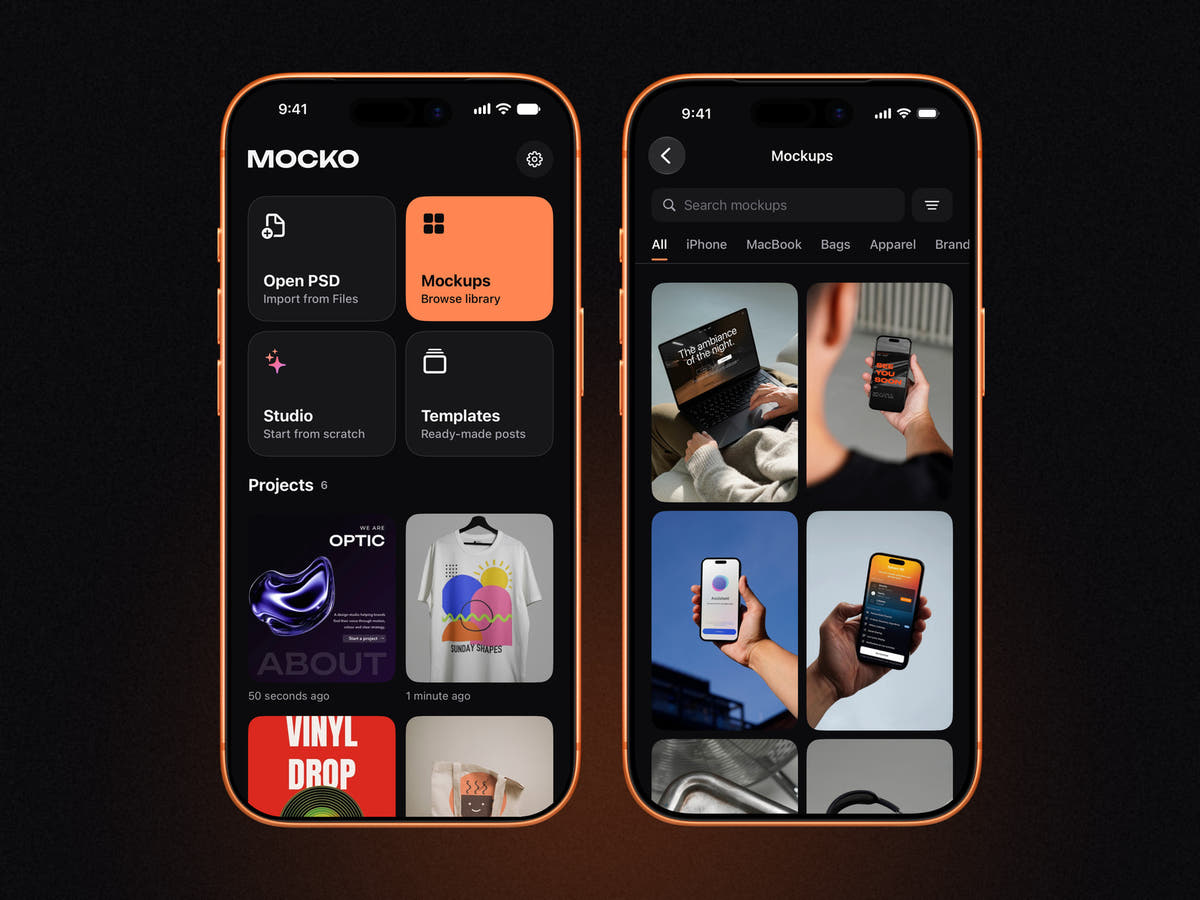
- From Files. Tap Open PSD on the home screen and choose a PSD or PSB from iCloud Drive, your iPhone or any connected storage.
- From the share sheet. Share a PSD from another app and pick MOCKO.
- From Mail or Messages. Tap the attachment and choose to open it in MOCKO.
Don't have a PSD yet? Tap Mockups to browse the built-in library of iPhone, MacBook, apparel, bag and branding mockups, including a set of silhouette mockups: a phone in a hand drawn as a bold silhouette on a soft gradient.
2. Tap the smart object and add your design
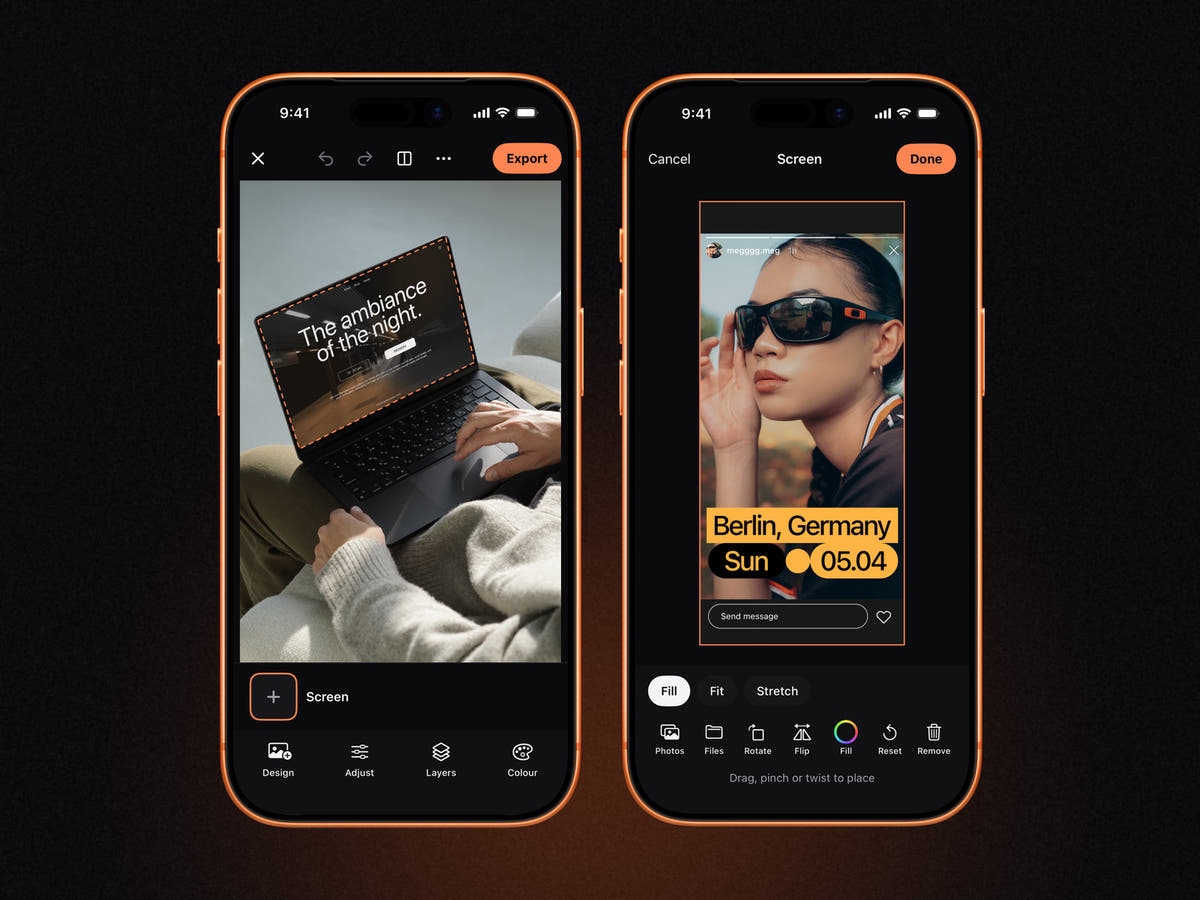
The smart objects appear under the canvas. Tap one, choose your design from Photos or Files, then drag, pinch and twist to place it. You can fill, fit or stretch it to the smart object's canvas, rotate or flip it, and reset it if you go too far.
3. Fine-tune
The editor has four tools under the canvas:
- Design swaps or re-places the artwork in a smart object.
- Adjust tweaks exposure, brightness, contrast, saturation and warmth, for your design alone or for the whole mockup.
- Layers shows, hides and reorders the PSD's layers, so you can switch off optional props or shadows.
- Colour changes color fills, for example the color of a T-shirt or a background.
Hold the canvas to compare with the original at any time.
4. Export
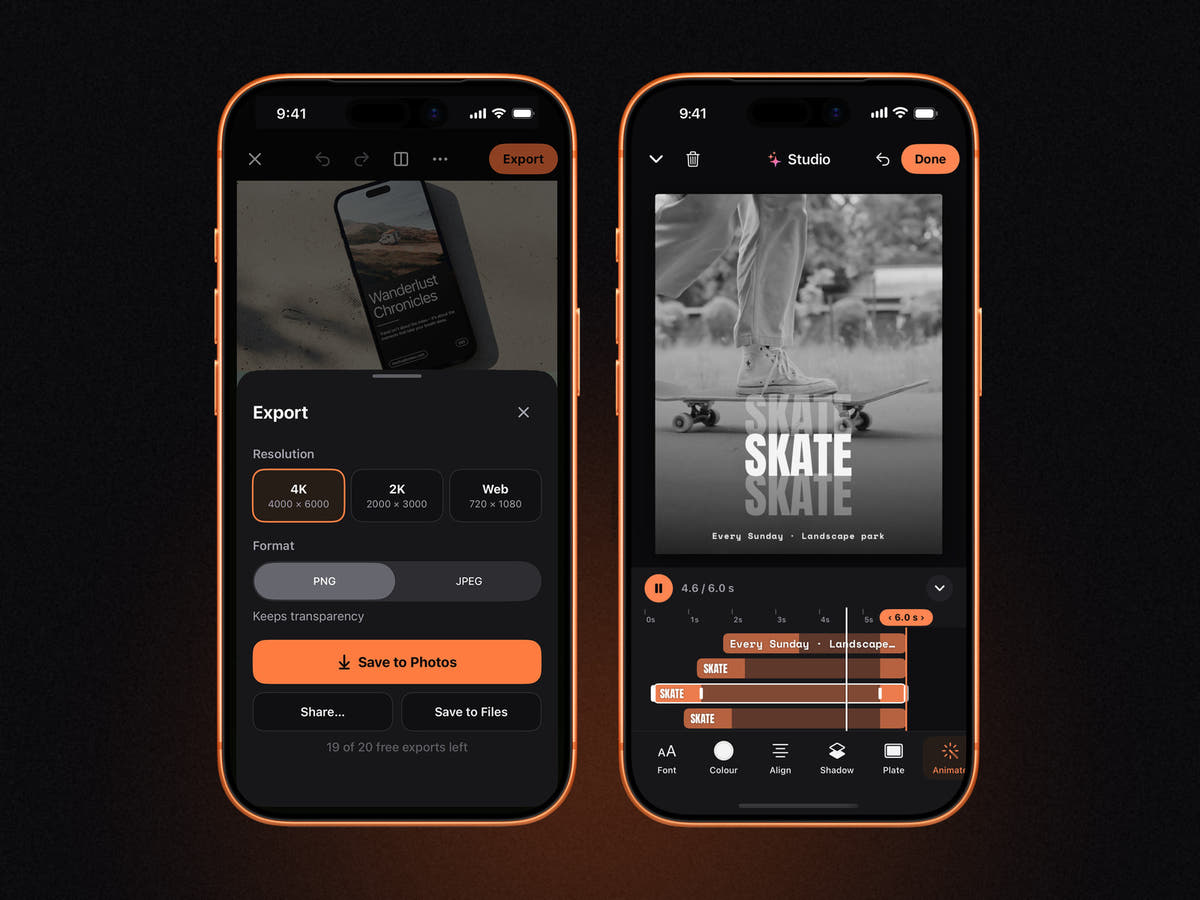
Export as PNG (keeps transparency) or JPEG, in 4K, 2K or a web size, and save to Photos, Files or share it straight to another app. Every project is saved on your iPhone automatically, so you can come back later and swap the design.
Go further: turn the mockup into a post
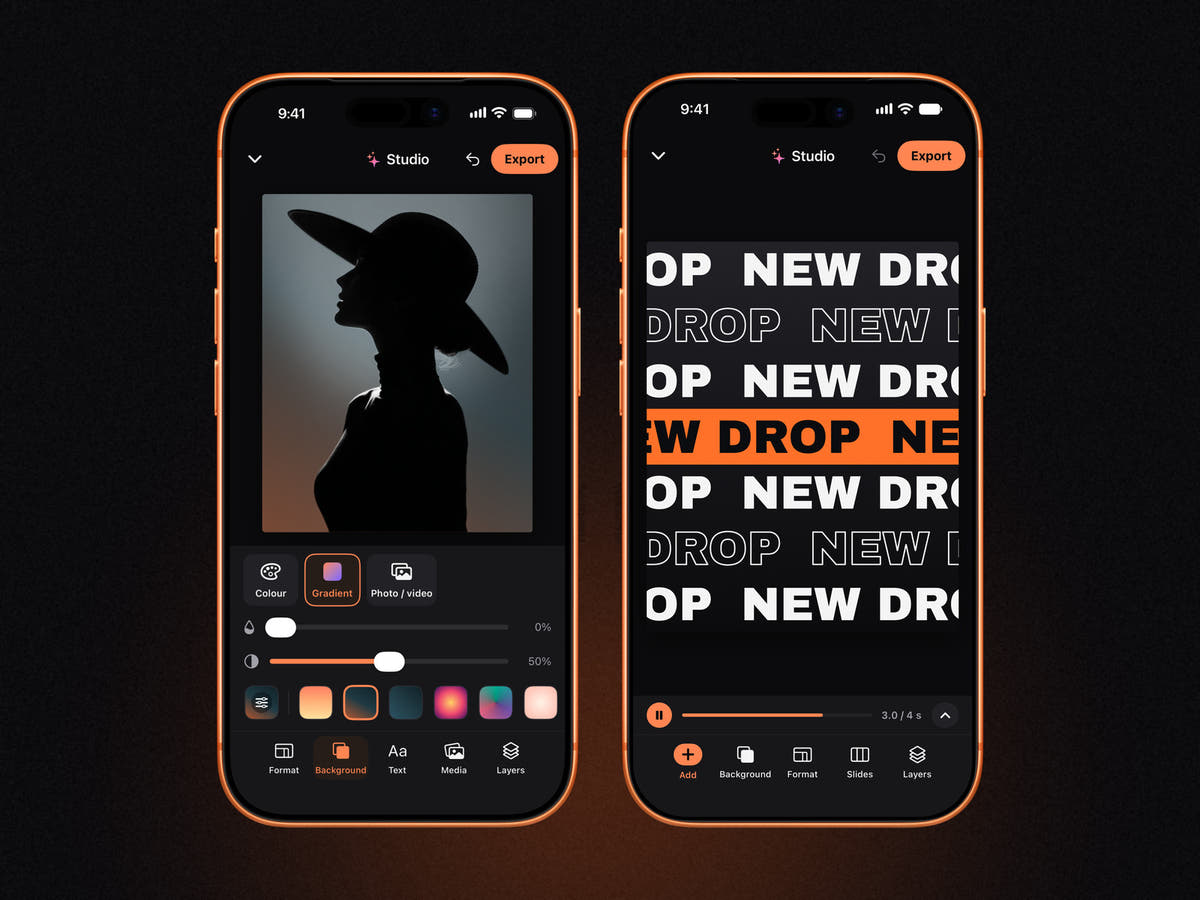
Since version 1.3, MOCKO also has a Studio for social posts. Drop your finished mockup into a post, add a headline, photos or shapes, pick a format for a feed post or a story, and export it as an image or an MP4 video. You can start from scratch or from one of 280+ templates, add animated titles and Kinetic type animations, and turn a post into a carousel.
Photoshop vs. iPhone: what changes
Replacing a mockup design in Photoshop usually takes five steps on a computer: open the file, find the smart object, paste the design, save and close it, then export. On iPhone with MOCKO it comes down to three: open the PSD, tap the smart object and choose your design, export.
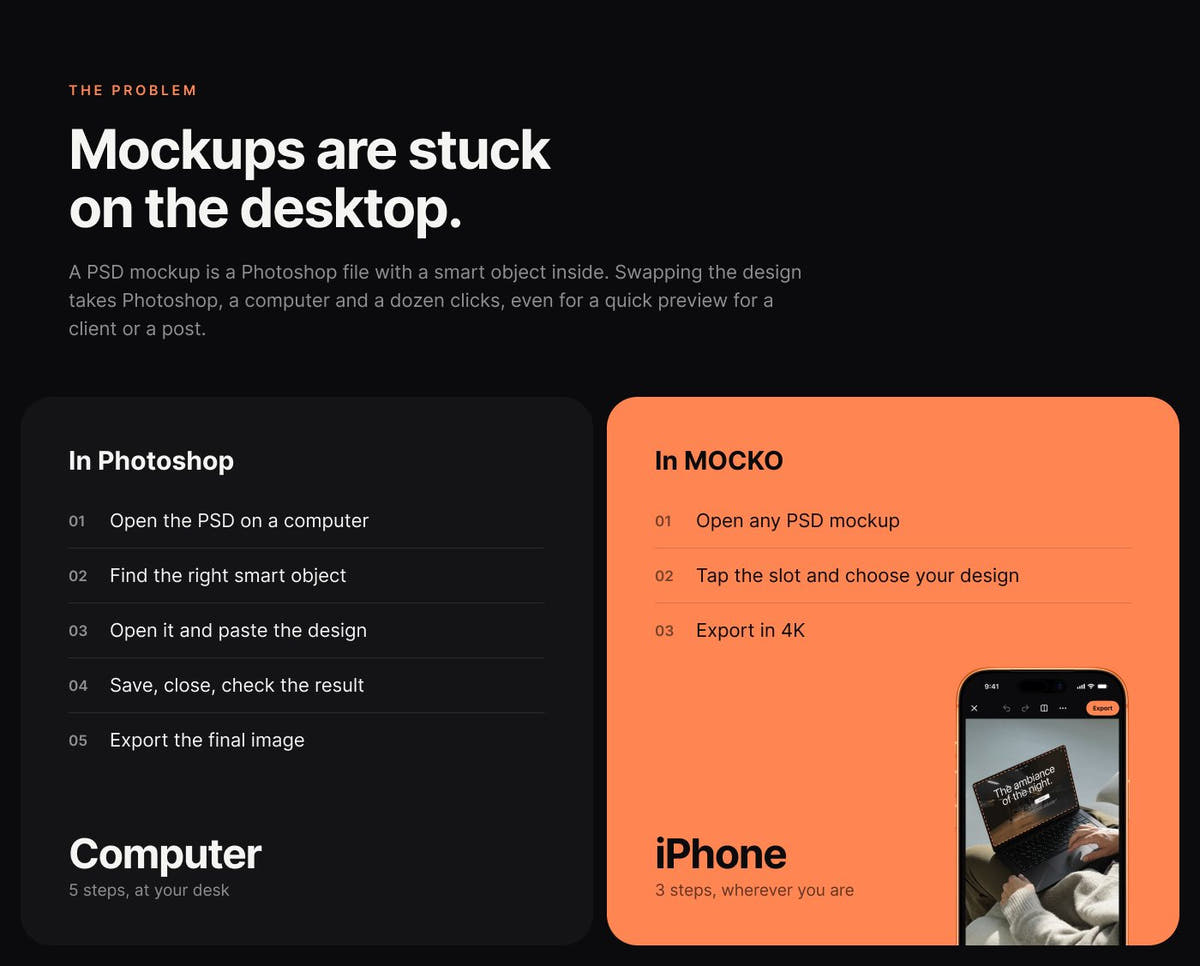
MOCKO isn't a replacement for Photoshop. It doesn't paint or retouch photos. It's focused on putting your design into a PSD mockup, turning it into a post and getting a high-quality image or video out, fast.
What to expect from complex files
- Big files take a moment. Large PSB mockups take longer to import, especially over iCloud Drive. Once imported, they open from your projects on the home screen.
- Most mockup features are supported. Layers, groups, masks, color fills, smart object perspective and custom warps are drawn on the phone.
- Some advanced effects may look slightly different. A few Photoshop-only features, such as smart filters, may not be drawn exactly as in Photoshop. If a result looks off, compare it with the file's preview on a computer.
- No smart objects? Still useful. A PSD without smart objects opens too. You can recolor layers, show or hide them and export, or save the PSD as a Studio template.
FAQ
Can I open a PSD file on iPhone without Photoshop?
Yes. The Files app may show a flat preview, and MOCKO opens PSD and PSB files with their layers and smart objects, so you can replace the design and export a finished image.
Does MOCKO work with PSB files?
Yes. MOCKO reads both PSD and PSB, Photoshop's format for large documents.
Can I use mockups I bought from other sites?
Yes. Any PSD mockup with a smart object can be opened from Files. Just check the mockup's license for how you're allowed to use the final images.
Is MOCKO free?
MOCKO is free to download. The free plan includes 20 mockups, 5 imports of your own PSDs, 20 exports, the free templates, every font and animation preset, and two Kinetic animations. MOCKO Pro, a monthly or yearly subscription, unlocks the full mockup library, all templates and Kinetic animations, background removal, video backgrounds and unlimited PSD imports and exports.
Can I export a video?
Yes. Posts made in MOCKO's Studio with animated titles, Kinetic type or a video background export as MP4 video. Still mockups export as PNG or JPEG in up to 4K.
Does MOCKO work on iPad or Mac?
MOCKO is an iPhone app. It's available in 9 languages.
Next steps
Want to see it in action? Follow our guide to making a T-shirt mockup without Photoshop, learn what a smart object is, or try the classic desktop workflow in how to use a PSD mockup. Looking for scenes to open? Browse all our PSD mockups.
Keep reading

Social Media Post Templates: Make Posts on iPhone in Minutes
How to choose and edit social media post templates on iPhone, keep a consistent feed, save your own templates and turn a PSD into...

PSD vs PSB: What's the Difference?
The difference between Photoshop's PSD and PSB formats, when each is used, why smart objects open as PSB, and how to open both on...

What Is a Smart Object? A Plain-English Guide for Mockups
What smart objects are, why every PSD mockup is built on them, how to edit one in Photoshop or on iPhone, and how to...