
 MOCKO


What Is a Smart Object? A Plain-English Guide for Mockups
What smart objects are, why every PSD mockup is built on them, how to edit one in Photoshop or on iPhone, and how to fix the most common problems.

On this page
If you've ever opened a mockup and seen a layer called "Your design here" or "Screen", you've met a smart object. It's the piece of a PSD that makes mockups work: you put your design in, and it comes out bent, shaded and lit like a real product.
Short answer: a smart object is a Photoshop layer that holds another image inside it and keeps the original intact. Any scaling, perspective or warp applied to the layer is stored as a setting, not baked into the pixels. In a mockup, the smart object holds the design, so when you replace its contents, the new design automatically takes the same shape, angle and lighting.
How smart objects work
A normal layer is just pixels. If you shrink it and enlarge it again, you lose detail. A smart object is more like a container:
- The contents are a separate image, stored inside the PSD at full quality.
- The transform (size, rotation, perspective, warp) is applied on top, and can be changed or undone at any time.
- Smart filters such as blur or sharpen can be applied to the layer and edited later.
When you double-click a smart object in Photoshop, its contents open in a separate window. Edit them, save, and the layer in the main document updates with all its transforms and effects.
Why mockups are built on smart objects
A mockup author photographs a product, a phone on a desk or a T-shirt on a hanger, and builds a smart object that matches the surface: its angle, its curve, its folds. Above it, they add layers for shadows, highlights and fabric texture. When you replace the contents:
- your design is warped to the surface,
- the shading layers above it add the folds, reflections and light,
- and the result looks like a photo of a real product.
How to edit a smart object
In Photoshop
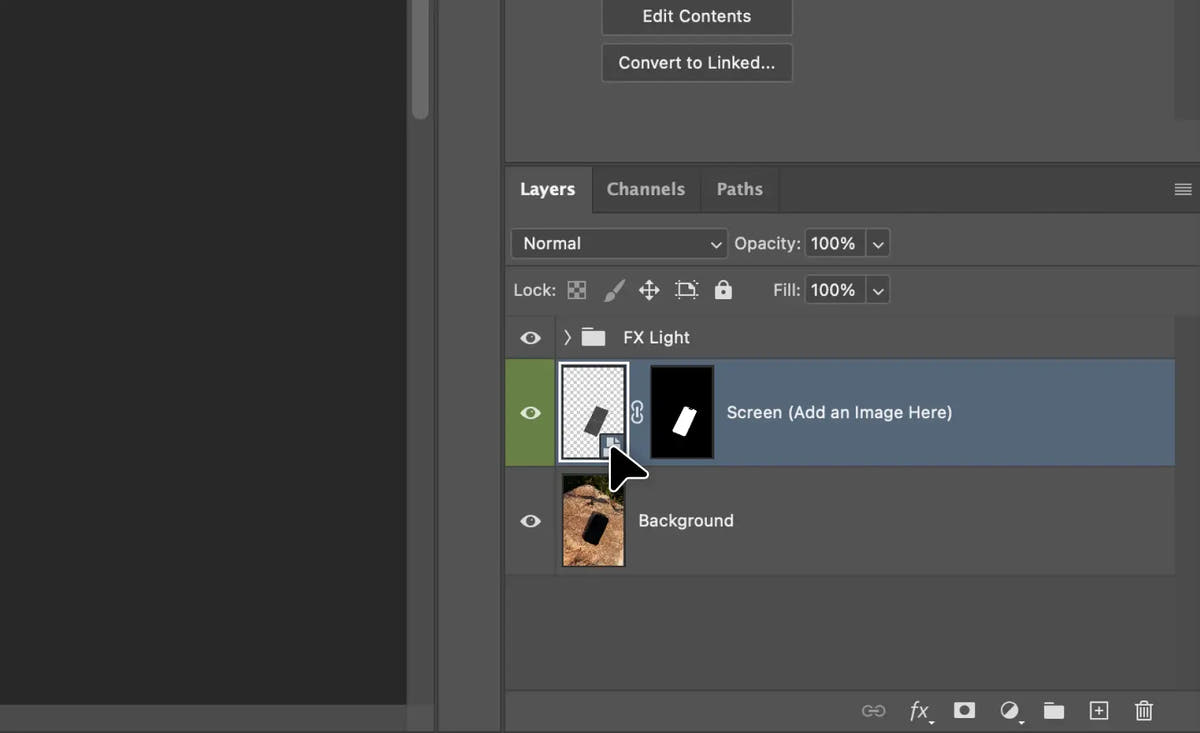
- Find the smart object in the Layers panel. In mockups it's usually named "Your design", "Place design here" or "Screen".
- Double-click its thumbnail. The contents open as a separate document (a .psb file).
- Paste or place your design, and size it to fill the canvas.
- Save (Cmd/Ctrl + S) and close the window. The mockup updates.
Our step-by-step guide on how to use a PSD mockup covers this with screenshots.
On iPhone, without Photoshop
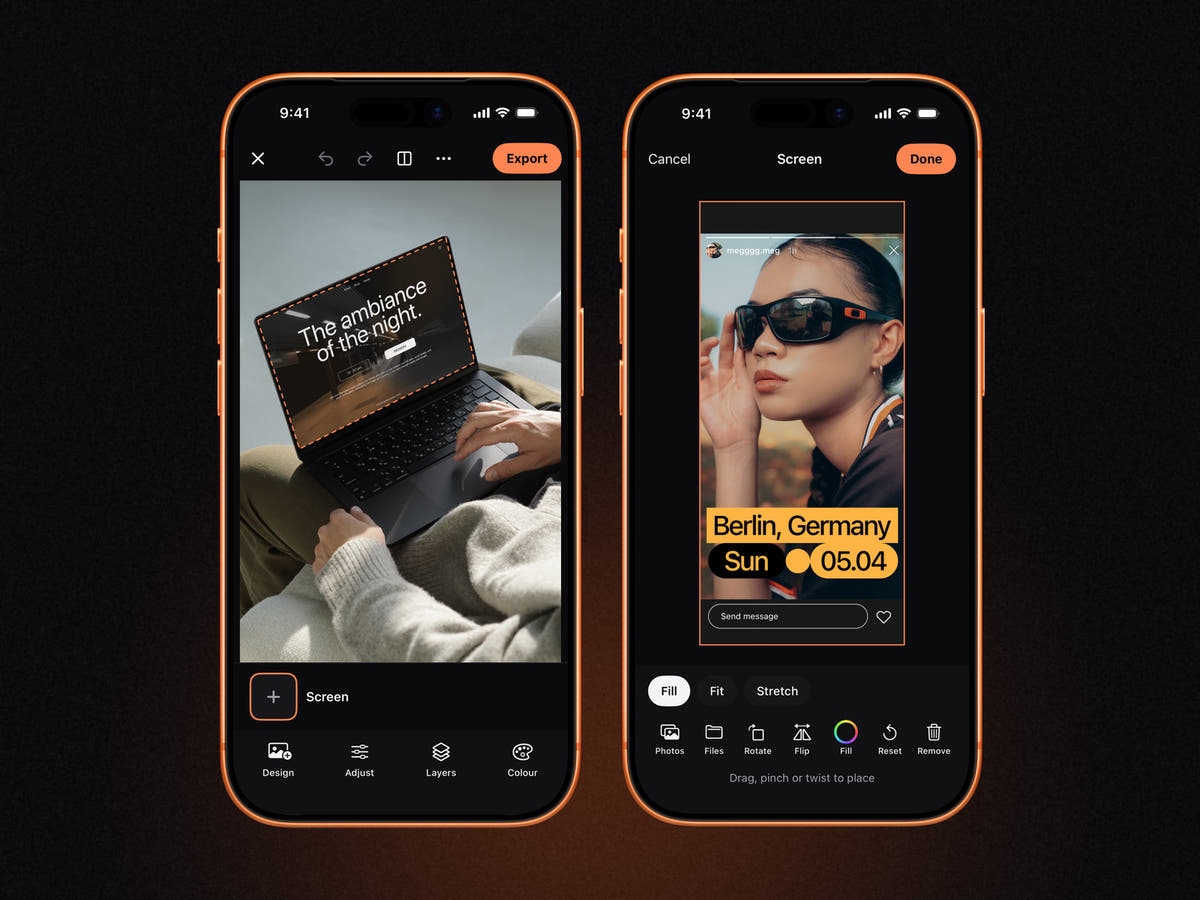
MOCKO reads the smart objects in a PSD or PSB file and lists them under the canvas. Tap one, choose your design from Photos or Files, and place it with drag, pinch and twist. MOCKO applies the mockup's perspective and warp and draws the layers above, just like Photoshop does.
Common smart object problems
- The design is cropped. Your artwork has a different aspect ratio from the smart object's canvas. Resize it to fit, or use Fit instead of Fill.
- The design looks blurry. The artwork is smaller than the smart object's canvas. Use a larger file.
- White box around a logo. The design was saved as JPEG. Use a PNG with a transparent background.
- Nothing changes after editing. In Photoshop, the contents window wasn't saved before closing.
- "Linked file missing". The smart object is linked to an external file instead of embedded. Relink it, or ask the author for a version with embedded smart objects.
Embedded vs. linked smart objects
Embedded smart objects store their contents inside the PSD, so the file works anywhere. Linked smart objects point to a separate file on disk, which keeps the PSD smaller but breaks if the file moves. Mockups for sale almost always use embedded smart objects.
FAQ
What is the difference between a smart object and a normal layer?
A normal layer stores pixels directly, so resizing or warping it changes the pixels. A smart object stores the original image separately and applies transforms on top, so you can change them or replace the contents without losing quality.
Why does a smart object open as a .psb file?
Photoshop stores the contents of a smart object as an embedded document in its large document format, PSB. It's temporary and saves back into the main PSD when you close it. See PSD vs PSB.
Can I edit a smart object without Photoshop?
Yes. MOCKO on iPhone opens PSD and PSB mockups and lets you replace the contents of their smart objects.
How do I know which layer is the smart object?
In Photoshop, its thumbnail has a small page icon in the corner. In mockups it's usually the layer with a name like "Your design here".
Next steps
Try it with a real file: free PSD mockups, then follow how to open PSD files on iPhone.
Keep reading

Social Media Post Templates: Make Posts on iPhone in Minutes
How to choose and edit social media post templates on iPhone, keep a consistent feed, save your own templates and turn a PSD into...

PSD vs PSB: What's the Difference?
The difference between Photoshop's PSD and PSB formats, when each is used, why smart objects open as PSB, and how to open both on...

How to Remove the Background from a Photo on iPhone
Cut out a product or a person on iPhone with the built-in Photos feature or inside MOCKO, refine the edges, and turn the cut-out...