
 MOCKO


Social Media Post Templates: Make Posts on iPhone in Minutes
How to choose and edit social media post templates on iPhone, keep a consistent feed, save your own templates and turn a PSD into an editable template.

On this page
Most social posts don't need to be designed from a blank page. A good template gives you the layout, the type and the spacing, and you bring the words, the photo and the product. That's how small brands keep a consistent feed without a designer on call.
Short answer: open a template app on your iPhone, pick a layout that fits your message, replace the text and images with your own, adjust the colors to your brand and export. In MOCKO, tap Templates on the home screen to browse 280+ post templates, many of them animated and dozens built on real product mockups, then edit them in Studio and export an image or an MP4 video.
Why use post templates
- Speed. Change the words and the photo and you're done in minutes.
- Consistency. Reusing a few layouts makes your feed look planned.
- Good typography by default. Sizes, spacing and hierarchy are already worked out.
- Motion without the work. Animated templates come with timing already set.
How to choose the right template
- Start from the message. An announcement needs a big headline, a product post needs room for the product, an event needs space for a date and a lineup.
- Match your photo. If your photo is busy, pick a layout with a solid area for text.
- Pick a format. 4:5 for the feed, 9:16 for Stories and Reels, 1:1 for everywhere.
- Choose a few and stick with them. Three or four templates in rotation are enough for a consistent feed.
How to edit a template on iPhone with MOCKO
1. Pick a template
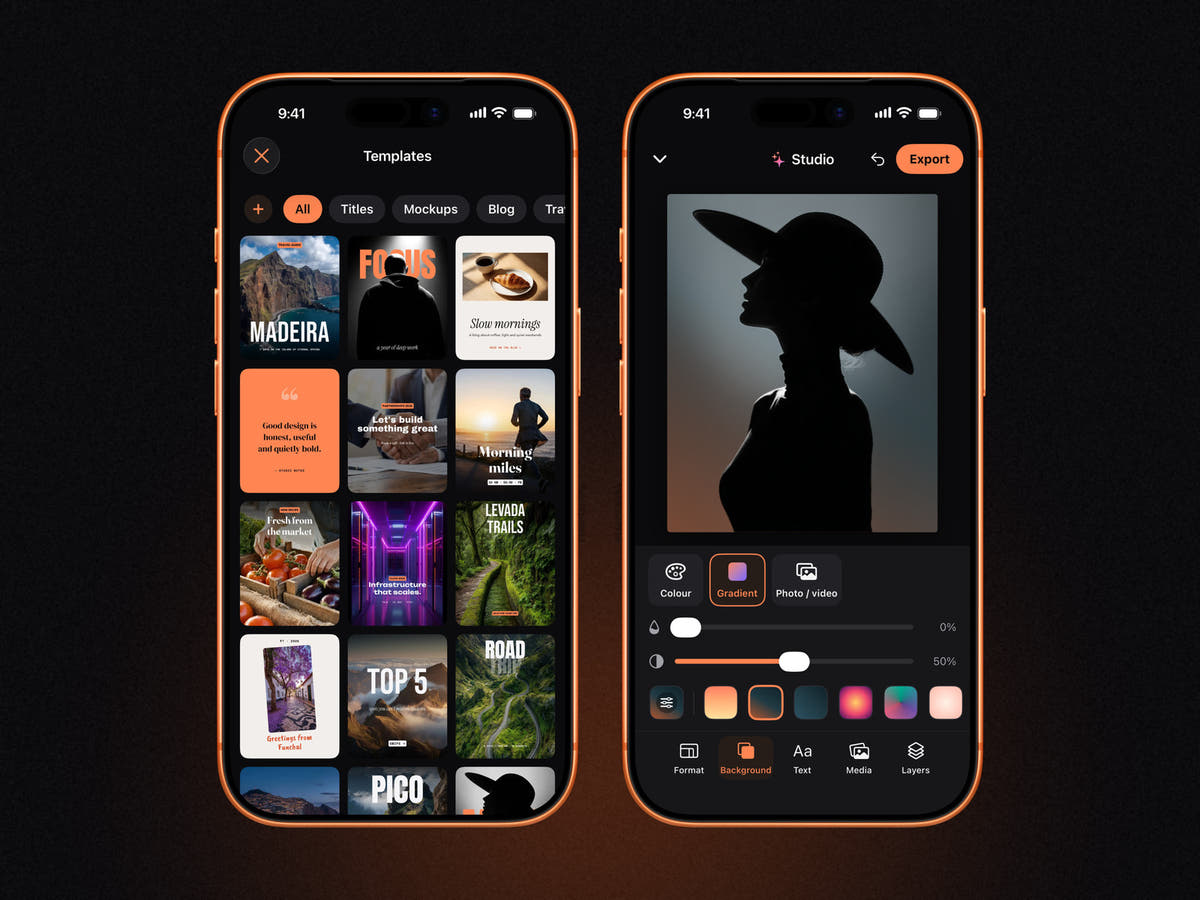
Tap Templates on the MOCKO home screen. Filter by type, scroll the previews and tap one to open it in Studio.
2. Replace the text
Tap any text to edit it. Change the font from a list that includes SF Pro, New York, Bebas Neue, Syne, Anton, Bungee and dozens more, and use Style for a shadow, an outline or a text plate behind the words.
3. Replace the images
Tap a photo to swap it for one of yours. In templates built on mockups, tap the mockup to put your own design on the T-shirt, phone or packaging. With MOCKO Pro you can also remove a photo's background to cut out a product or a person. See how to remove a background on iPhone.
4. Match your brand
Change the background under Background to your brand color or a gradient, and recolor text and shapes. Use Layers to hide elements you don't need, reorder them, or drag one onto the trash to delete it.
5. Animate and export
Animated templates already move. To change the motion, select a layer and pick another in, loop or out preset, or add an animated title. Then export: still posts save as PNG or JPEG, animated ones as MP4.
Make your own templates
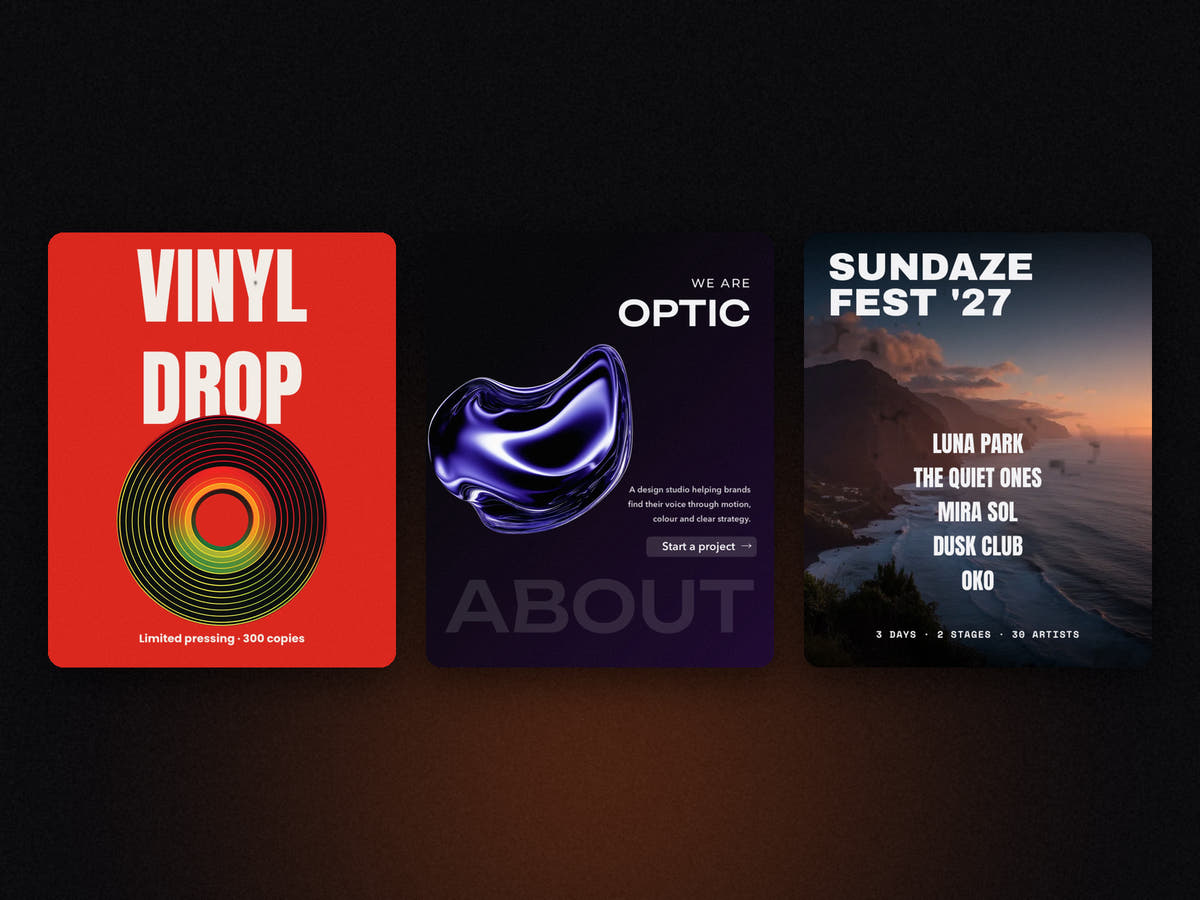
Once a post works, save it as your own template and reuse it every week. You can also import a PSD from Photoshop as a template: MOCKO turns its layers into an editable Studio post, so a layout designed on a computer becomes something you can update on your phone.
Templates every small brand needs
- New product: product on a mockup, name, price.
- Sale: big number, end date. A Kinetic headline works well here.
- Event: poster style with the date and lineup.
- Quote or tip: one sentence on a solid color.
- Behind the scenes: a photo with a small caption.
- Opening hours or announcement: clear text over a photo of the place.
FAQ
Are MOCKO templates free?
Every template built on a free mockup is free. MOCKO Pro, a monthly or yearly subscription, unlocks all 280+ templates.
Can I use templates for Instagram Stories?
Yes. Switch the post to 9:16 under Format, then adjust the layout so the text stays clear of the top and bottom of the screen.
Can I make a carousel from a template?
Yes. Open the template, then use Slides to add or duplicate slides. See how to make an Instagram carousel on iPhone.
Can I import my own PSD as a template?
Yes. MOCKO can turn a PSD into an editable Studio template.
Next steps
Make your template move with animated Instagram posts on iPhone, or put your product into it with a T-shirt mockup.
Keep reading

PSD vs PSB: What's the Difference?
The difference between Photoshop's PSD and PSB formats, when each is used, why smart objects open as PSB, and how to open both on...

What Is a Smart Object? A Plain-English Guide for Mockups
What smart objects are, why every PSD mockup is built on them, how to edit one in Photoshop or on iPhone, and how to...

How to Remove the Background from a Photo on iPhone
Cut out a product or a person on iPhone with the built-in Photos feature or inside MOCKO, refine the edges, and turn the cut-out...