
 MOCKO


How to Make a T-Shirt Mockup Without Photoshop
A step-by-step guide to putting your print on a realistic T-shirt mockup using only your iPhone, plus tips for mockups that look like real product photos.

On this page
You've finished a print and want to see it on a real T-shirt, today, without ordering a sample or opening Photoshop. A mockup gets you there in minutes. And if Photoshop isn't on your computer, or you don't have a computer with you at all, you can do the whole thing on your iPhone.
This guide shows how to prepare your print, choose a good T-shirt mockup and make a realistic image with MOCKO, our free iPhone app for PSD mockups.
What you need
- Your print. A PNG with a transparent background works best, so the shirt's fabric shows around the design.
- A T-shirt mockup. A PSD from our apparel collection, any other PSD mockup with a smart object, or one from MOCKO's built-in library.
- An iPhone with MOCKO. It opens PSD mockups, so you don't need Photoshop or a computer.
Step 1: Prepare your print
Export your design as a PNG at a high resolution. A width of at least 3000 px is a safe starting point for a chest print. Trim empty space around the artwork, so it's easy to size on the shirt.
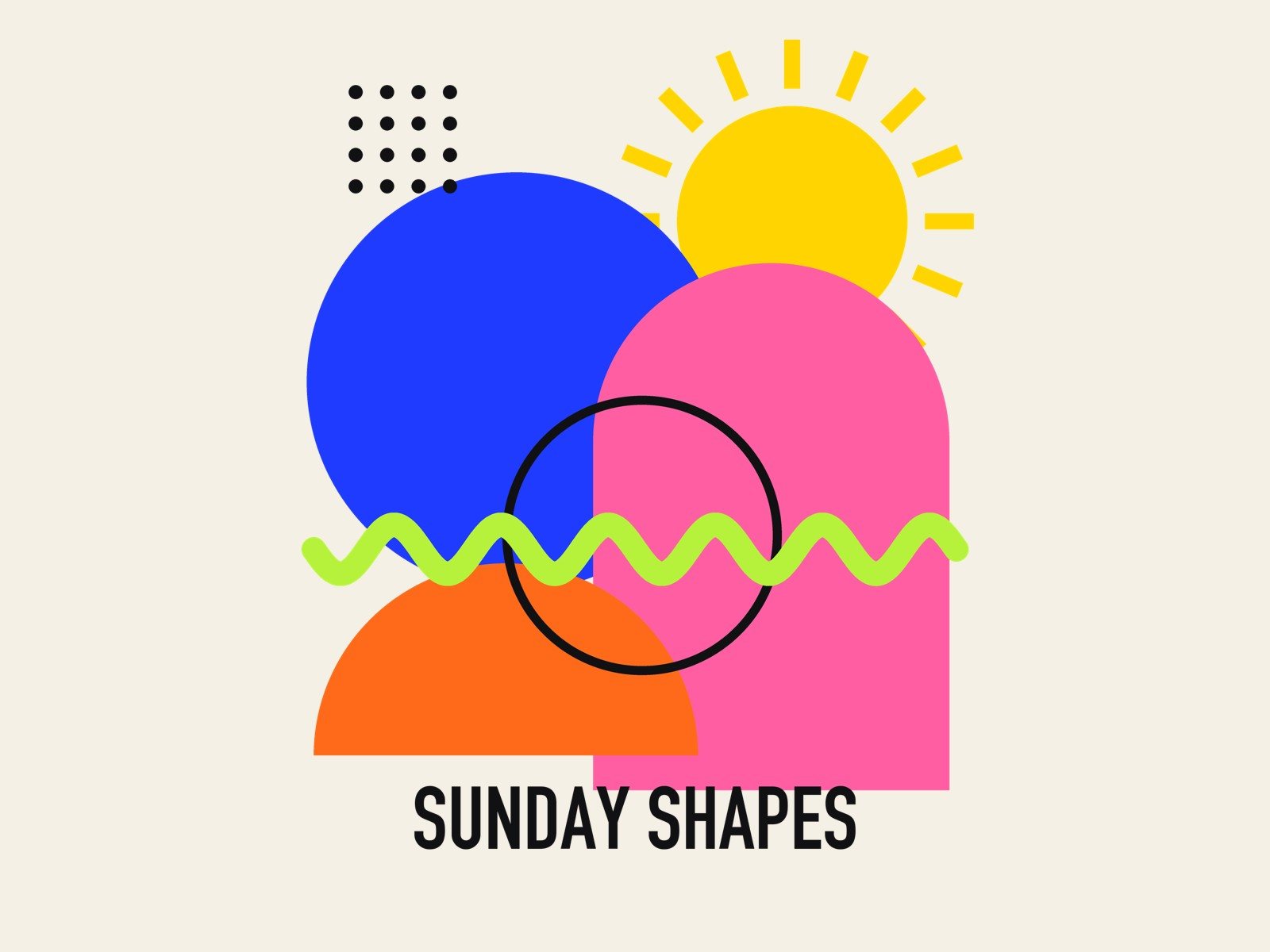
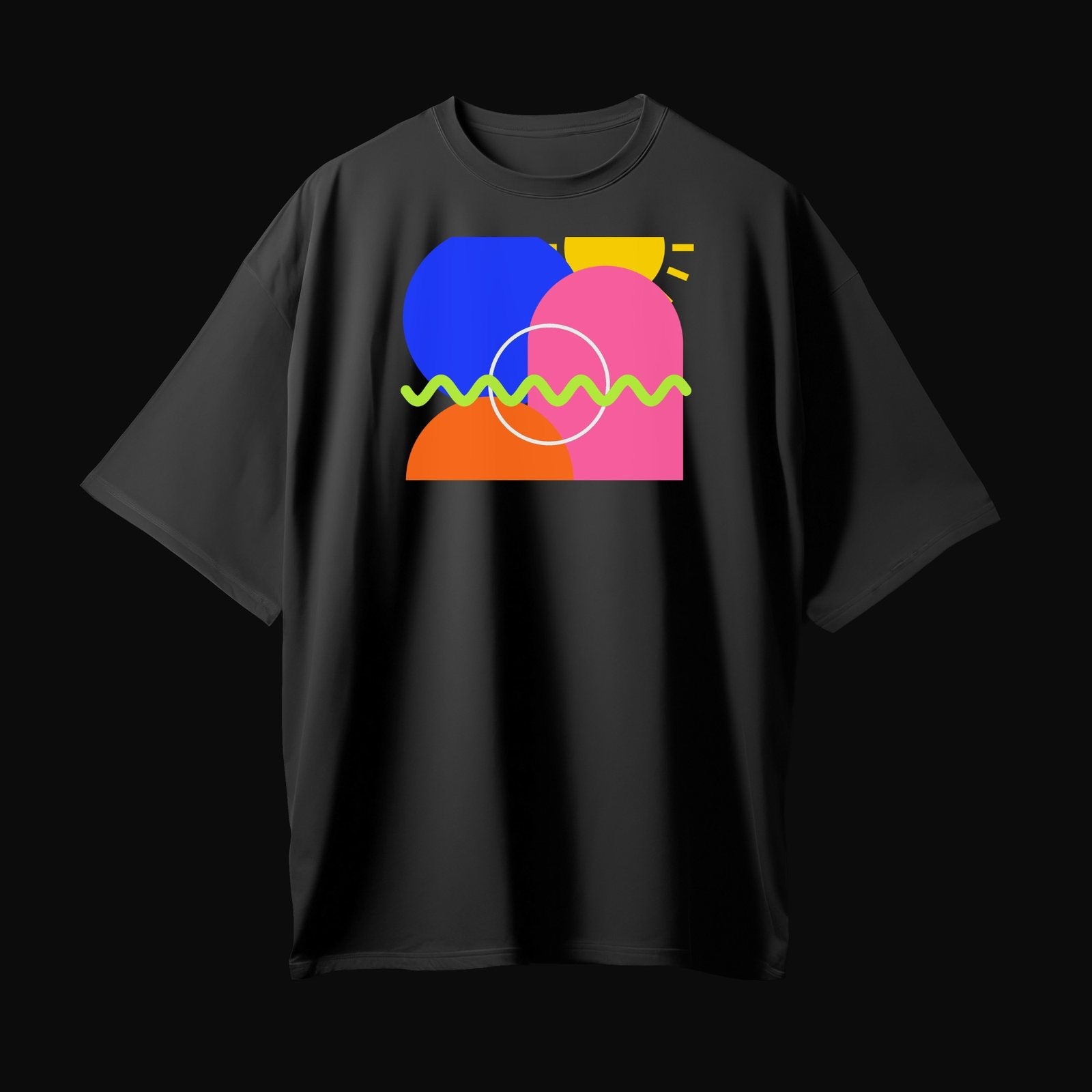
Keep a second version for dark shirts if your design uses dark colors. Black ink on a black tee simply disappears.
Step 2: Choose a T-shirt mockup
The mockup sets the mood of the final image, so choose it with your buyer in mind:
- Hanging or flat lay shots show the whole design clearly and work well as a main product image.
- Close-ups show fabric texture and print detail.
- Lifestyle scenes help people imagine wearing the shirt.
Make sure the mockup has a smart object for the print and, ideally, a color layer for the shirt, so you can show several colors from one file.
Step 3: Put the print on the shirt in MOCKO
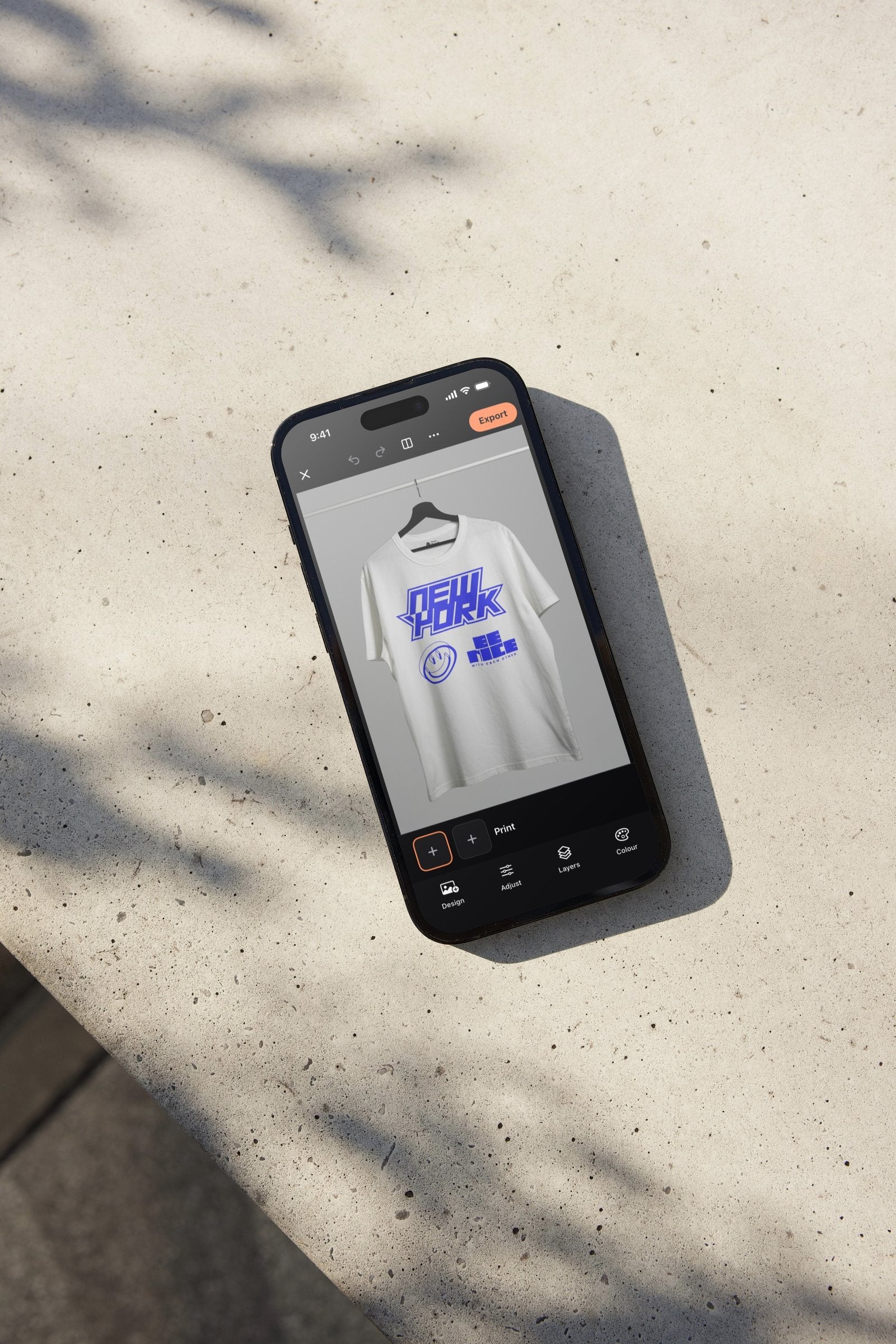
- Open MOCKO and tap Mockups to pick a T-shirt from the library, or Open PSD to open your own mockup from Files.
- Tap the print's smart object under the canvas and choose your PNG from Photos or Files.
- Drag, pinch and twist to place it. Double-tap to reset if you go too far.
- Tap Done. MOCKO wraps the print onto the shirt with the mockup's own folds, shadows and lighting.
Step 4: Fine-tune the look
A few small tweaks make the result more believable:
- Size the print realistically. On a real tee, a front print is usually about a hand's width below the collar and doesn't run into the seams.
- Change the shirt color. If the mockup has a color fill, use Colour to switch shades, then export each version.
- Adjust the design, not the scene. Use Adjust on the print to lower saturation or brightness slightly if it looks too clean for fabric. Or switch the scope to the whole mockup to warm up the entire photo.
Step 5: Export and use it
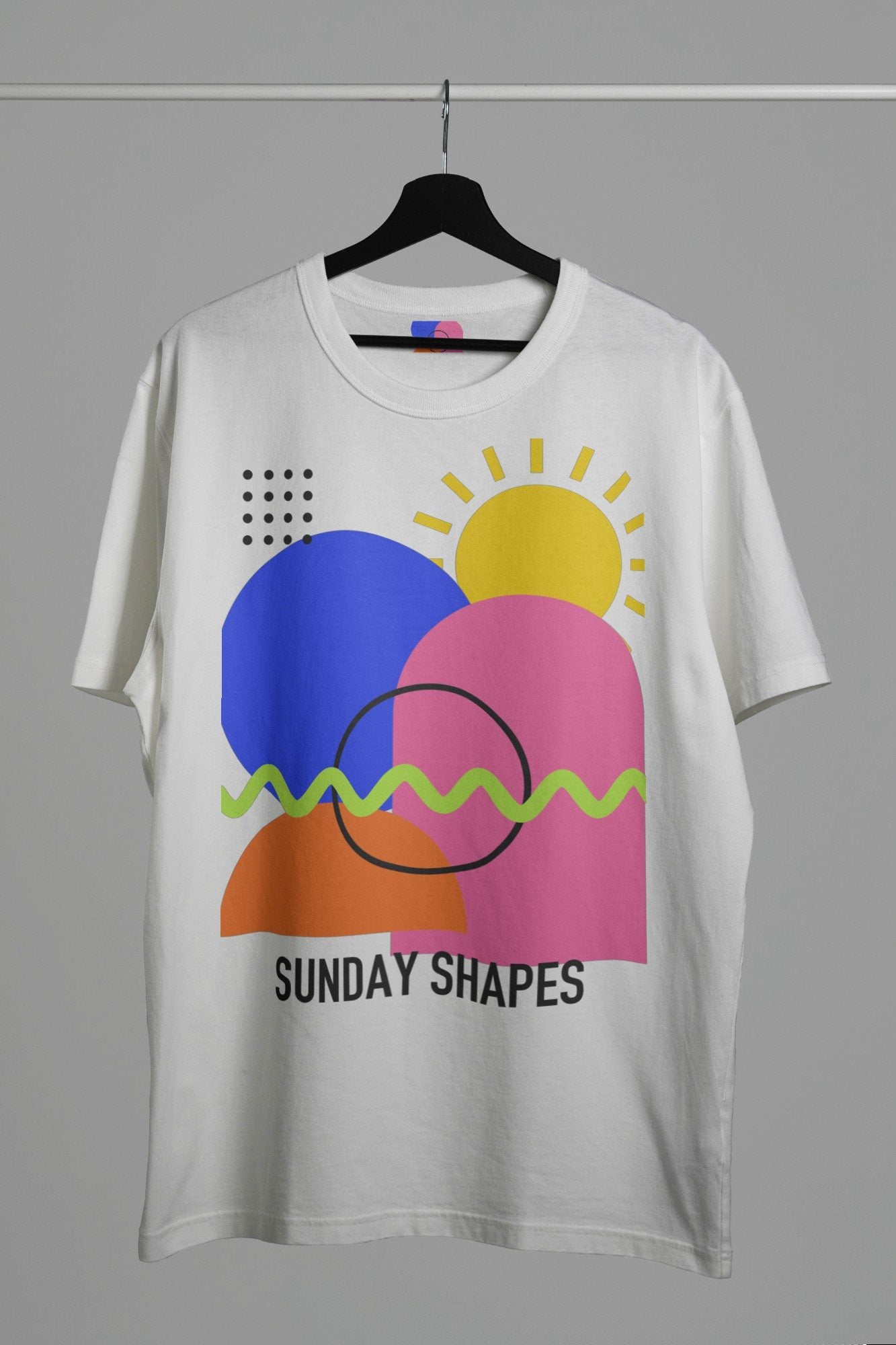
Export a PNG or JPEG in sizes up to 4K and save it to Photos. A 4K export is large enough for product pages and print-on-demand listings, while a smaller web size is quicker to post on social media.
Want more than one image per product? Open a different scene, a black tee or a tote bag, and reuse the same print. Our guide to product photos without a photo shoot shows how to build a full set.
Tips for realistic T-shirt mockups
- Use transparent PNGs. A white box around your design is the fastest way to make a mockup look fake.
- Don't fill the whole shirt. Unless you sell all-over prints, leave fabric visible around the design.
- Match the scene to the product. Streetwear looks great in moody, dark scenes. Kids' tees and gift shirts feel better in bright, soft light.
- Keep one style per shop. Using the same mockup series across products makes a shop look curated.
- Check at 100%. Zoom into the export to make sure fine lines and small text are still crisp.
- Show the back too. If your design has a back print, export a second image from a back-view mockup so buyers see the whole product.
FAQ
Can I make a T-shirt mockup for free?
Yes. MOCKO is free to download and includes free mockups. Our freebies collection also has free PSD mockups you can open in MOCKO or Photoshop.
What file format should my print be?
A PNG with a transparent background. JPEGs have no transparency, so they show as a rectangle on the shirt.
Can I use mockups I already own?
Yes. If you have a T-shirt PSD with a smart object, open it in MOCKO from Files and replace the design the same way.
Will the print follow the folds of the fabric?
That depends on the mockup. Good T-shirt mockups have shading and texture layers above the smart object, and MOCKO draws those layers too, so the print picks up the folds and lighting.
More ideas
Hoodies, totes and caps work exactly the same way. Browse our apparel mockups for more scenes, or read how to open PSD files on iPhone to learn more about what MOCKO can open.
Keep reading

Four People, One App: Who Uses Mockups
Four illustrative examples, from an online T-shirt seller to a coffee shop owner, showing how different small businesses can use mockups to show a...

How to Open PSD Files on iPhone
Why PSD files are hard to open on a phone, and how to open PSD and PSB mockups on iPhone with MOCKO, replace the...

Product Photos for Your Online Shop Without a Photo Shoot
Which photos every product listing needs and how small sellers can make them from mockups, without samples, studios or a photographer.