
 MOCKO


How to Make Animated Instagram Posts on iPhone
A step-by-step guide to animated posts on iPhone: animated titles, 120+ motion presets, a layer timeline and MP4 export, plus ideas and tips for clean motion.

On this page
Posts that move get noticed. A headline that slides in, a product that floats, a price that pops: a few seconds of motion is often enough to stop someone scrolling. The usual way to make that is a desktop video editor or a motion design app, which is a lot of tool for a six-second post.
Short answer: on iPhone, open MOCKO and tap Studio or start from a template. Add your text, photos or a mockup, then use Titles for a ready-made animated headline or Animate to give any layer an in, loop and out move. Adjust the timing on the timeline and export the post as an MP4 video, ready for Instagram, TikTok or Stories.
This guide walks through the whole process, with tips for animation that looks designed rather than busy.
What makes a good animated post
- One idea per post. The motion should point at the message: the product name, the date, the offer.
- Short loops. Five to ten seconds is plenty. Instagram replays short videos automatically, so a clean loop gets watched more than once.
- Staggered timing. Elements that arrive one after another feel deliberate. Everything moving at once feels like noise.
- Readable at a glance. Big type, strong contrast, and enough time on screen to read every line.
How to make an animated post on iPhone, step by step
1. Start a post
Open MOCKO and tap Studio to start from scratch, or Templates to begin with a ready-made layout. Many templates are already animated, so you only need to change the words and the photo. Pick a format under Format: 4:5 or 1:1 for a feed post, 9:16 for Stories and Reels, 16:9 for a wide video.
2. Add your content
Tap + Add. One menu holds everything: text, animated titles, Kinetic type, photos, files, mockups, templates and shapes. Add a background under Background: a color, a gradient, a photo or, with MOCKO Pro, a video.
3. Animate the headline
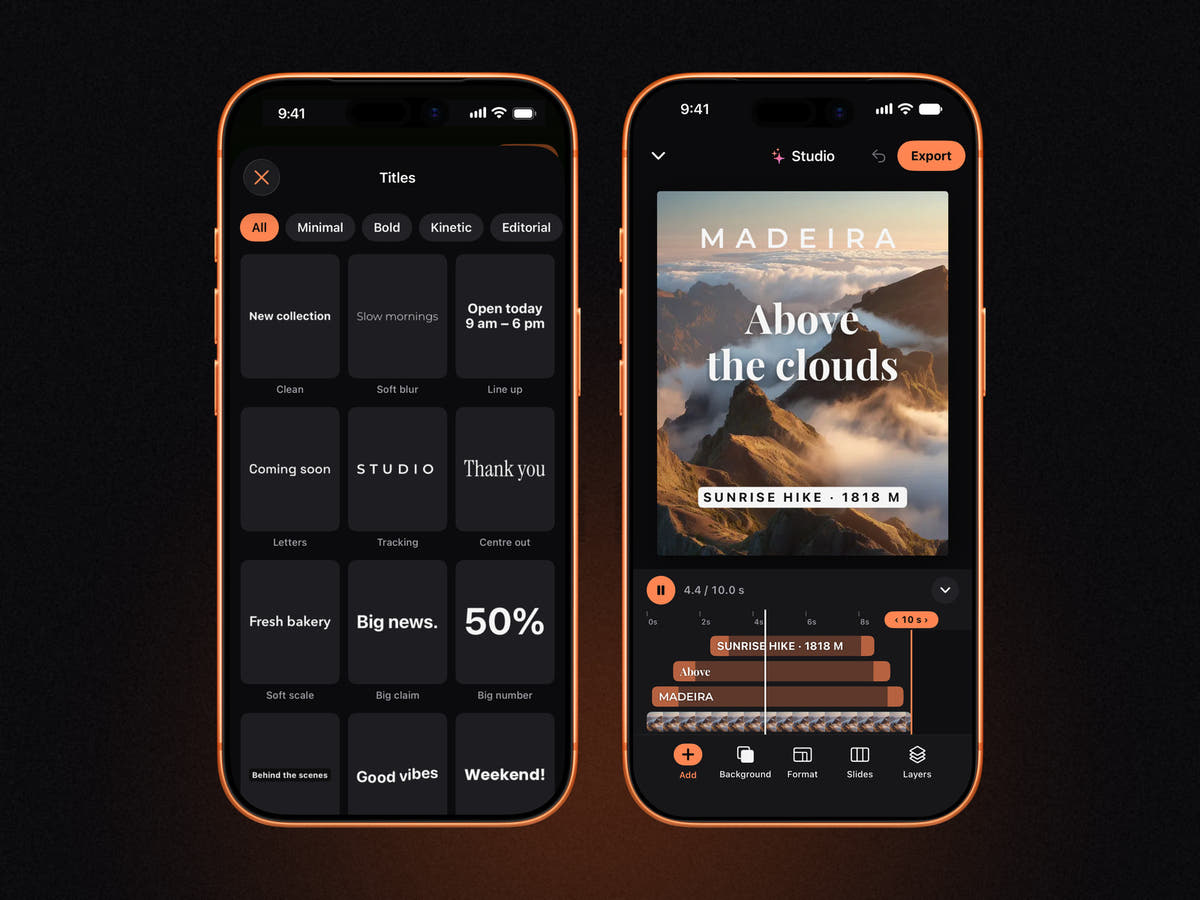
The quickest way is Titles: 53 animated headline styles, filtered into Minimal, Bold, Kinetic and Editorial, each previewing live in the library. Tap one, type your words, change the font and color. For a bolder look, add a Kinetic animation: looping type that slides, stretches, flips and spins across the frame.
4. Animate the other layers
Select any layer, a photo, a shape, a mockup, a line of text, and tap Animate. MOCKO has more than 120 ready-made presets, split into three kinds:
- In: how the layer arrives, for example fade, rise, wipe, pop or tracking in.
- Loop: what it does while on screen, such as float, pulse or spin.
- Out: how it leaves, for example wipe off, sink or zoom through.
Combine them freely. A product photo that scales up, floats gently and zooms out at the end already looks like a small ad.
5. Set the timing
Open the timeline under the canvas. Every layer has its own bar: drag its ends to change when it appears and disappears, and set the length of the whole post. Stagger the starts by half a second and the post will feel choreographed.
6. Export the video
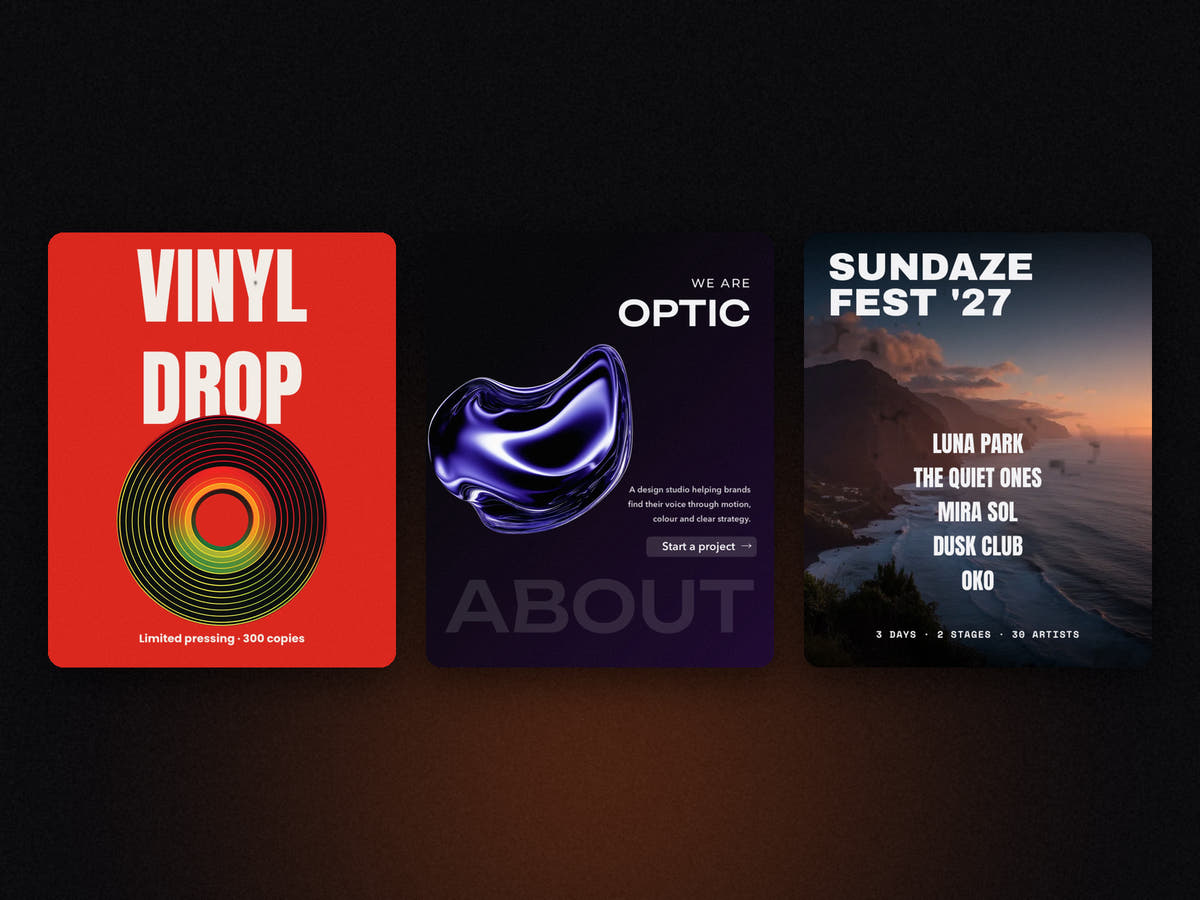
Tap Export. A post that moves exports as an MP4 video, ready to upload to Instagram, TikTok, YouTube Shorts or a story. A still post exports as PNG or JPEG instead. Your project stays on your iPhone, so you can come back and change the date or the offer next week.
Ideas for animated posts
- Product drop: a mockup of the new tee scales in, "New drop" tracks in above it, the date pops in last.
- Event lineup: names rise in one by one over a photo, the venue line wipes in at the end.
- Sale: a big Kinetic "Sale" loop with the discount in a text plate.
- Studio intro: your logo or a 3D shape floats while a short line of copy fades in.
- Opening hours: a simple title animation over a photo of the shop.
Tips for motion that looks professional
- Use one or two kinds of motion. If the headline wipes in, let the other text wipe too.
- Give the eye a place to rest. Leave a second or two where nothing new arrives.
- End clean. If every layer leaves before the loop restarts, the replay looks seamless.
- Check without sound. Most people watch muted, so the words have to carry the message.
- Keep text inside the safe area. In 9:16 Stories, leave space at the top and bottom for the app's own buttons.
FAQ
Can I make an animated Instagram post on iPhone for free?
Yes. MOCKO's free plan includes every animated title and animation preset, every font, the free templates and two Kinetic animations, and animated posts export as MP4 video.
What format should an animated Instagram post be?
4:5 (portrait) takes the most space in the feed. Use 9:16 for Stories and Reels and 1:1 if you want the same post to work everywhere. MOCKO has all of these under Format.
Can I animate a mockup?
Yes. Add a mockup to a post from the library or your own PSD, then give it an in, loop or out animation like any other layer.
Can I use a video as the background?
Yes, with MOCKO Pro. Pick a video under Background, and its clip appears on the timeline with your other layers.
Next steps
Want bolder type? Read kinetic typography on iPhone. Posting several images at once? See how to make an Instagram carousel on iPhone. Or start from a layout with social media post templates.
Keep reading

Social Media Post Templates: Make Posts on iPhone in Minutes
How to choose and edit social media post templates on iPhone, keep a consistent feed, save your own templates and turn a PSD into...

PSD vs PSB: What's the Difference?
The difference between Photoshop's PSD and PSB formats, when each is used, why smart objects open as PSB, and how to open both on...

What Is a Smart Object? A Plain-English Guide for Mockups
What smart objects are, why every PSD mockup is built on them, how to edit one in Photoshop or on iPhone, and how to...